 Tell Archi
Publish Your First Project
Deploy your Tell Archi application to a live URL, test it in production, and keep improving it with continuous updates.
Once you're happy with your application, you can publish it directly from Tell Archi and make it accessible on the web.
Tell Archi handles the hosting and deployment process for you, so you don't need to configure a server or external hosting provider to get your first project online.
In this guide, you'll publish your first project and open the live version.
Before you publish
Before publishing, take a moment to review your application in the Tell Archi preview.
Check the important parts of your project, including:
- Navigation and links
- Page content
- Forms and buttons
- Mobile responsiveness
- Authentication, if your app uses it
- Important application workflows
You don't need your application to be perfect before publishing.
You can continue making changes and publish updated versions later.
1. Click Publish
When you're ready, click Publish in the top-right area of your Tell Archi project workspace.
This opens the publishing window for your project.
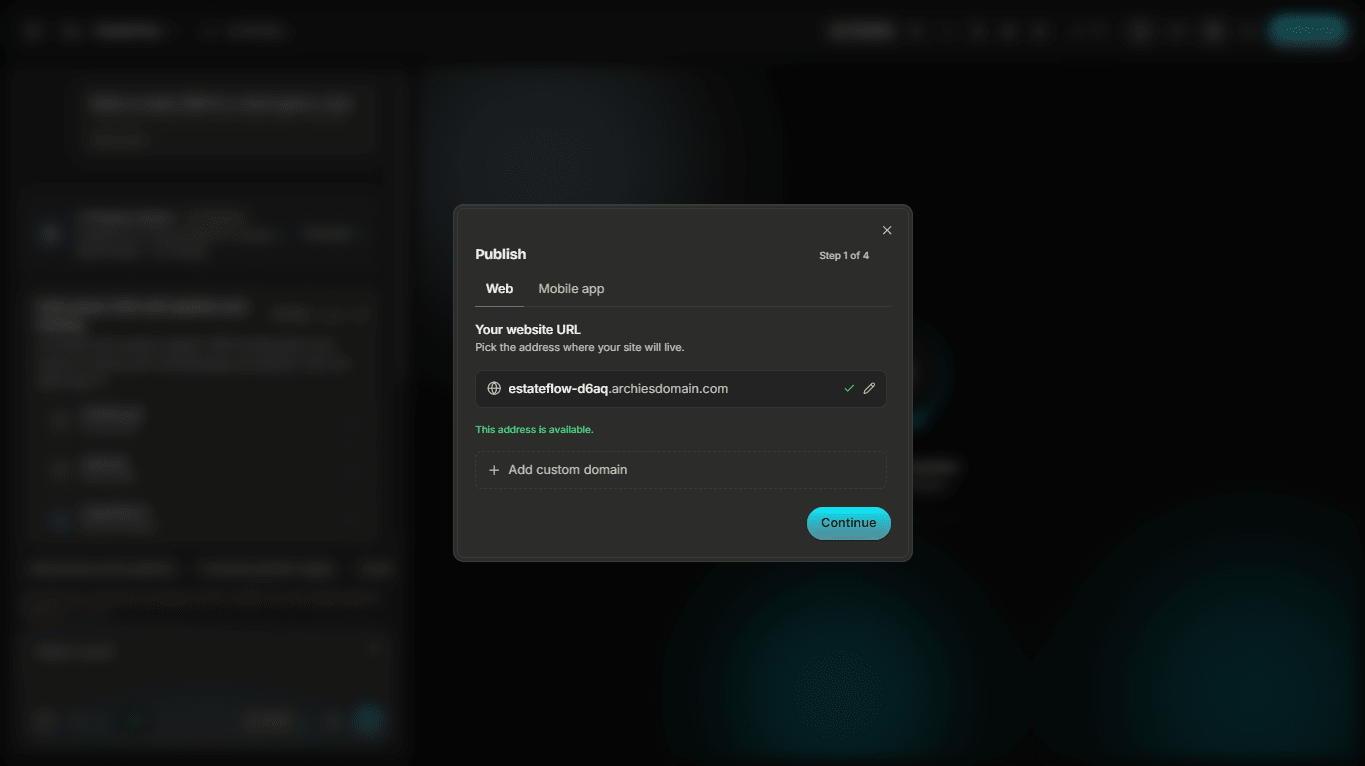
Tell Archi will prepare the latest version of your application for deployment.
2. Review your publishing options
Before deployment begins, review the information shown in the publishing window.
Depending on your project and account, Tell Archi may display information about your deployment and live project URL.
When you're ready, confirm the publish action.
3. Wait for deployment
Tell Archi will now deploy your application.
During this process, the application is prepared and made available in the live environment.
You don't need to configure a server or manually upload your project files.
Keep the project open while Tell Archi completes the deployment.
4. Your project is live
When publishing is complete, Tell Archi will confirm that your application is live.
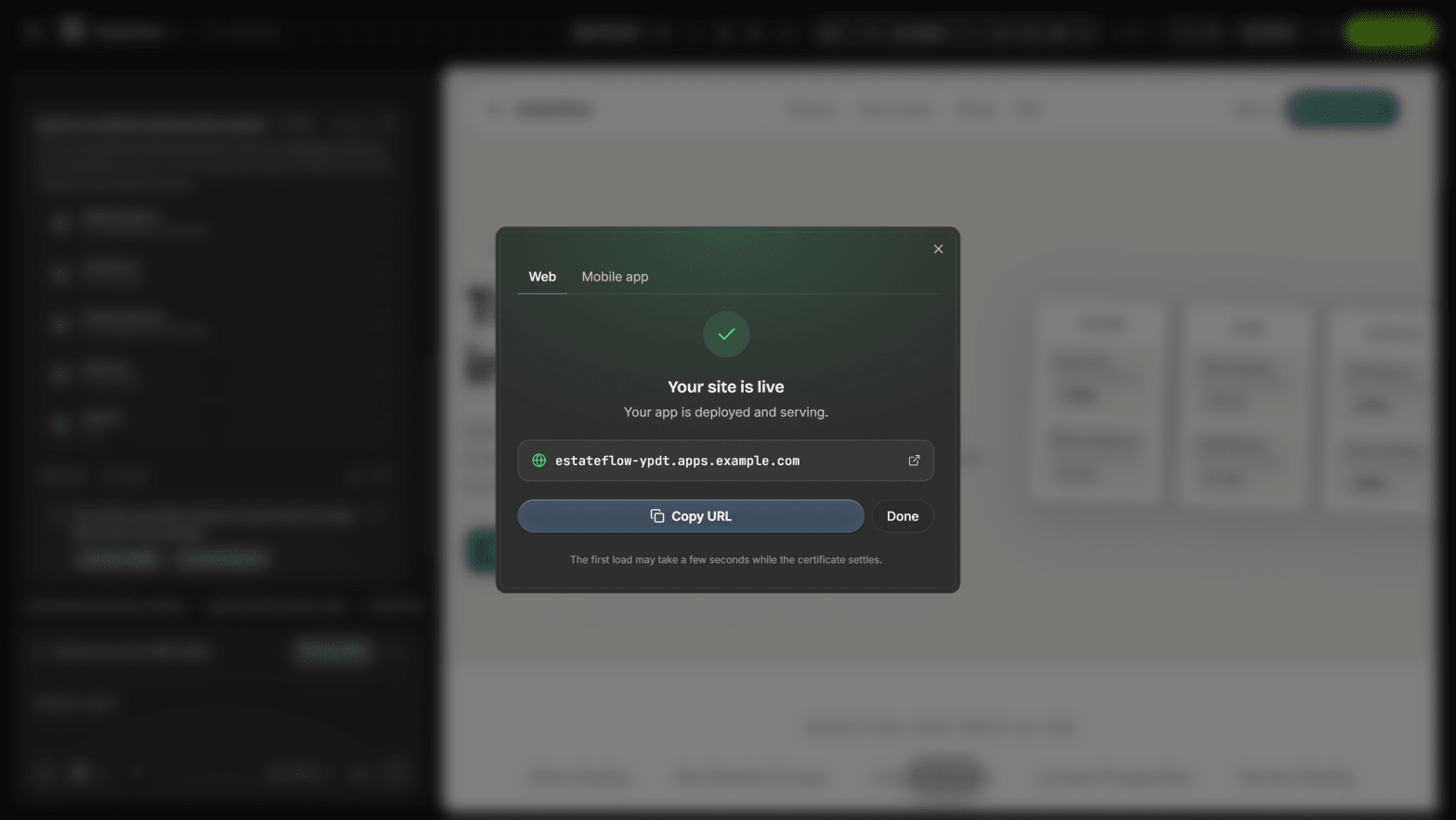
You can now open your application using its live URL.
For example, your published project will have an Tell Archi-hosted URL similar to:
your-project.archiesdomain.com
Your exact URL will depend on the project.
5. Open your live application
Open the live URL and test the application outside the Tell Archi workspace.
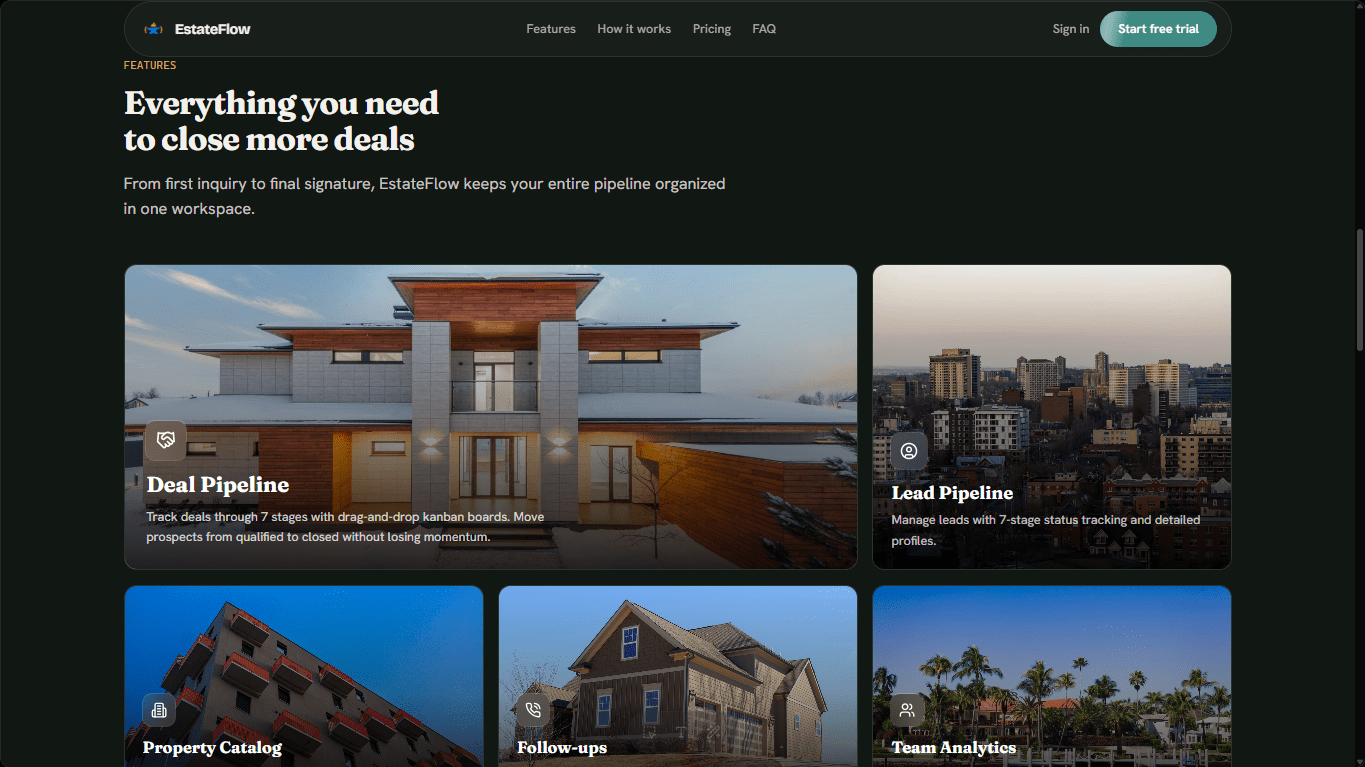
This is the version visitors and users can access.
Test the important parts of your application again in the live environment, especially:
- Navigation
- Forms
- Authentication
- Database-powered features
- External integrations
- Mobile layouts
If you find something you'd like to change, return to Tell Archi and continue working on the project.
Making changes after publishing
Publishing doesn't lock your application.
You can return to the project and tell Tell Archi what you want to improve.
For example:
Add a testimonials section below the projects section.
Or:
Change the Contact button in the navigation to Request a Quote.
Or:
Improve the mobile layout of the Services section.
Tell Archi can make the changes to your existing project.
Once you're happy with the new version, publish again to update the live application.
This creates a continuous development cycle:
Build → Preview → Publish → Learn → Improve → Publish again
Using your own domain
Your Tell Archi URL is enough to get your application online, but you may eventually want to use your own domain.
For example:
www.yourcompany.com
Custom domains are available on supported Tell Archi plans.
Once connected, visitors can access your Tell Archi-hosted application through your own domain while Tell Archi continues to host the project.
Want to host the project yourself?
Tell Archi provides hosting for your published projects, but you're not limited to Tell Archi hosting.
If you need to manage your own infrastructure, you can export your project and deploy it elsewhere.
For example, you may choose to:
- Export your project code
- Export your project to GitHub
- Deploy the exported application to your own infrastructure or VPS
You just shipped with Tell Archi 🎉
You've now gone from an idea to a live application.
Describe
You told Tell Archi what you wanted to create.
Build
Tell Archi helped turn your idea into a working application.
Review
You previewed and refined the result.
Publish
Tell Archi deployed your application to a live URL.
And you're not finished.
Return to your project whenever you want to add features, improve the experience, or continue evolving your product.
What's next?
You've completed the Getting Started section.
Next, we'll go deeper into how to work effectively with your AI product team.